Tracking personal finances in Google Sheets is one of the most powerful things you can do with your money. It gives you complete control over your data, your categories, and your analysis. But most people who start a finance spreadsheet abandon it within three months. The problem is rarely the spreadsheet itself. It’s a handful of common google sheets finance mistakes that create friction, produce unreliable data, and slowly drain your motivation until you stop opening the file altogether. This article covers the seven most common mistakes, why they happen, and how to fix each one before your spreadsheet becomes another abandoned project.
Table of Contents
Why This Matters
Google Sheets is the right tool for personal finance tracking. It’s flexible, powerful, and free. But flexibility is a double-edged sword. Without the right approach, you end up building something that takes more time to maintain than it’s worth.
The people who succeed with spreadsheet-based finance tracking aren’t the ones with the fanciest formulas. They’re the ones who avoided the mistakes that kill consistency.
Here are the seven that matter most.
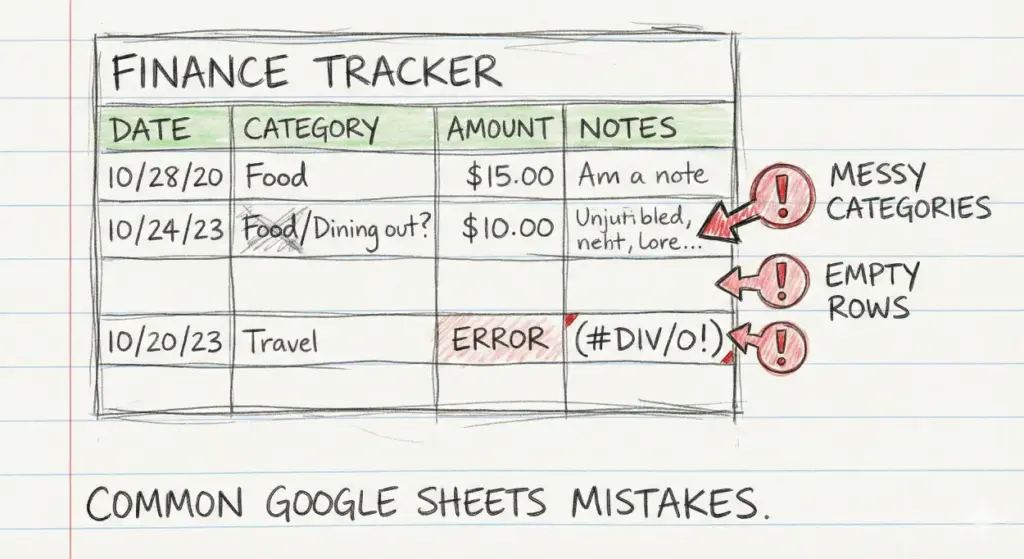
Mistake 1: Manually entering transactions every month.
This is the number one reason people quit.
You tell yourself you’ll sit down once a month, log into your bank, export a CSV, clean up the data, and paste it into your spreadsheet. Maybe you even do it for two or three months. But then life gets busy. You skip a month. The data piles up. Suddenly you’re three months behind, and the thought of catching up feels like a chore you’ll never actually do.
The problem isn’t discipline. It’s friction. Manual data entry is unsustainable for nearly everyone. Studies on habit formation suggest that the more friction a behavior has, the less likely it is to stick.
The fix: Automate the data pipeline. Use a tool that syncs your bank transactions directly into Google Sheets without you lifting a finger. ZentroData does this in about 60 seconds of setup. Once the data flows automatically, you can focus on analysis instead of data entry.
Mistake 2: Using categories that don’t match how you actually spend.
Most people start with whatever categories their bank or a template gives them. “Shopping.” “Food & Drink.” “Services.”
These labels are vague enough to be useless. When “Shopping” includes both a $400 winter coat and a $12 phone charger, the category tells you nothing. When “Food & Drink” lumps your weekly groceries with Friday night cocktails, you can’t see where the money is actually going.
Generic categories create generic insights. And generic insights don’t change behavior.
The fix: Build categories that reflect how you actually think about your spending. Split “Food & Drink” into “Groceries,” “Coffee Shops,” “Restaurants,” and “Takeout” if those distinctions matter to you. The more your categories match your mental model of spending, the more useful the data becomes.
Mistake 3: Ignoring subscriptions and recurring charges.
Subscriptions are the slow bleed most people never see clearly. $12 here, $15 there, $9.99 for something you signed up for eight months ago and forgot about.
Individually, none of them feel significant. Together, they can easily add up to $200 or $300 per month. Research from consumer finance surveys consistently shows that the average person underestimates their monthly subscription spending by 2x or more.
The mistake isn’t having subscriptions. It’s not tracking them separately from your other spending. When subscriptions are buried inside “Entertainment” or “Services,” they’re invisible.
The fix: Create a dedicated subscription tracker. List every recurring charge, the amount, the billing cycle, and when you last confirmed you actually use it. Review it monthly. ZentroData’s starter templates include a subscription tracker built for exactly this, so you don’t have to build one from scratch.
Mistake 4: Only looking at monthly totals instead of trends.
You spent $4,200 last month. Is that good or bad?
You can’t answer that question without context. If you spent $3,800 the month before and $3,500 the month before that, you’re trending in the wrong direction. If you spent $5,100 last month and $4,800 the month before, you’re improving.
Most people check their spreadsheet, look at the current month, and either feel good or feel bad. Then they close the file. That’s a snapshot, not a system. Snapshots don’t reveal the trajectory that actually determines your financial health.
The fix: Build a trend view. A simple line chart showing your total monthly spending over 6 to 12 months tells you more than any single month’s breakdown ever will. This is what a burn rate chart does. It shows you whether your spending is climbing, falling, or holding steady over time.
Mistake 5: Overcomplicating formulas before the basics work.
It’s tempting to go deep on day one. Nested IFs, VLOOKUP chains, conditional formatting rules on every column, pivot tables pulling from six different tabs.
The problem is complexity kills consistency. When your spreadsheet breaks (and complex spreadsheets always break), you spend your energy debugging formulas instead of understanding your finances. Worse, if something breaks silently, you end up making decisions based on bad data without knowing it.
The fix: Start simple. Get clean data flowing in. Build one or two views that answer your most important questions. Live with that for a month. Add complexity only when you have a specific question that your current setup can’t answer. The goal is financial clarity, not a spreadsheet engineering project.
Mistake 6: Not calculating your actual burn rate.
Your burn rate is the single most important number in personal finance, and almost nobody tracks it.
It’s simple: how much money are you actually spending per month, on average, over the last 3 to 6 months? Not what you budgeted. Not what you planned to spend. What you actually spent.
Most budgeting apps don’t show this number. Most spreadsheets don’t calculate it. And without it, you’re guessing whether you’re building wealth or slowly draining it. You might feel like you’re doing fine, but the trend line tells a different story.
The fix: Calculate your average monthly spend across the last 6 months. Compare that to your take-home income. The gap between those two numbers is your real savings rate. Track how that gap changes over time. That’s your burn rate chart, and it’s the single view that drives the most behavioral change.
Mistake 7: Building the perfect spreadsheet instead of a sustainable one.
This is the meta-mistake that contains all the others.
People spend weeks designing the perfect template. Color-coded tabs. Elaborate dashboards. Every edge case accounted for. Then they realize they have to maintain this thing every month, and the maintenance burden is so high they stop doing it.
The spreadsheet that works is the one you actually open. A simple, clean sheet with automated data and two or three useful views will outperform a complex masterpiece you abandon in 60 days.
The fix: Optimize for consistency, not perfection. Use starter templates that give you useful analysis out of the box. Modify them over time as you learn what questions matter most to you. The system should serve you, not the other way around.
Patterns Across These Mistakes
Three themes run through all seven mistakes:
- Friction kills consistency. Every manual step you add to your workflow increases the chance you’ll stop doing it. Automate what you can. Simplify what you can’t.
- Generic tools produce generic insights. Categories, charts, and views that aren’t built around your specific questions won’t change your behavior. Customize for how you actually think about money.
- Trends matter more than snapshots. A single month’s data tells you almost nothing. Track how your spending, subscriptions, and burn rate change over time. That’s where the real insights live.
Google Sheets Finance Mistakes: Common Approaches Compared
| Approach | Pros | Cons | Best For |
|---|---|---|---|
| Manual CSV exports | Free, full control | Unsustainable, messy data | One-time analysis |
| Generic budgeting apps | Easy setup | No spreadsheet access, generic views | People who want simple answers |
| DIY spreadsheet from scratch | Fully custom | High maintenance, often abandoned | Advanced users with time |
| Automated sync with templates | Clean data, ready-to-use views | Monthly cost | People who want insights without the maintenance |
FAQs
Q: Can’t I just manually update my spreadsheet once a month? A: You can, but data shows most people stop within 2 to 3 months. The friction of exporting, cleaning, and pasting data accumulates until it’s easier to skip a month. Automating the data flow removes the step where most people quit.
Q: What’s the most important thing to track in a personal finance spreadsheet? A: Your burn rate. Knowing your average monthly spending over the last 6 months, compared to your income, tells you whether you’re building wealth or slowly depleting it. Everything else is secondary to that number.
Q: How many categories should I use? A: Enough to answer your specific questions, but not so many that categorizing becomes a chore. Most people do well with 10 to 15 custom categories that match how they actually think about spending.
Q: Should I track daily spending or just monthly totals? A: Track transactions at the daily level so the data is there, but review at the weekly or monthly level. Daily reviews tend to create anxiety without actionable insight. Weekly or monthly reviews reveal patterns you can act on.
Q: How do I know if my spreadsheet is too complicated? A: If you spend more time maintaining your spreadsheet than analyzing your spending, it’s too complicated. Simplify until the maintenance burden is close to zero.
Q: What’s the difference between a budget and a burn rate? A: A budget is what you plan to spend. A burn rate is what you actually spend, averaged over time. Most people’s budgets don’t match reality. Your burn rate tells you the truth.
Get Your Data Working Without the Maintenance Burden
For people who want real financial visibility in Google Sheets without the manual data entry that causes most people to quit, automating the bank-to-spreadsheet pipeline is the most important step. It removes the friction that kills consistency and lets you focus on the analysis that actually changes behavior. ZentroData is one tool that does this, with a 60-second setup, starter templates for burn rate and subscription tracking, and customer support that responds when you need help.