The alternative to downloading CSVs every month is automating the export entirely. ZentroData connects to your bank accounts and writes your transaction data directly into your own Google Sheets on a schedule you set, with no file downloads, no manual cleaning, and no merging required. When a sync runs, new transactions appear as rows in your sheet automatically. You get the same data you were chasing with CSV exports, in a format you can actually work with.
The CSV process breaks down for most people within a few months. The files are formatted inconsistently across banks, duplicates pile up when you miss a month, and the cleaning work eats time you never budgeted for. Automation closes that loop permanently.
Why This Matters
Manual CSV exports give you a snapshot. Automated syncs give you a living dataset. That difference matters the moment you want to track spending over time, catch a subscription that crept up, or understand your actual burn rate across multiple accounts.
When your transactions flow into Google Sheets automatically, the analysis work becomes possible. You can build formulas, custom categories, and charts on top of data that updates itself. None of that is sustainable when the data pipeline depends on you remembering to download a file.
The people who stop tracking their finances don’t stop because they lose interest. They stop because the process became a second job.
How ZentroData Works
ZentroData replaces the CSV export cycle with an automated sync. Here is exactly what the setup looks like:
- Sign up at zentrodata.com and connect your bank accounts through a secure connection flow. Your credentials go directly to your bank, not to ZentroData.
- Connect your Google account and grant ZentroData permission to write to your Drive.
- Select the Google Sheet and tab where your transactions should land.
- Set a sync schedule. Daily is the default. ZentroData runs in the background and writes new rows on that cadence.
- Trigger a manual sync anytime you want an immediate update without waiting for the next scheduled run.
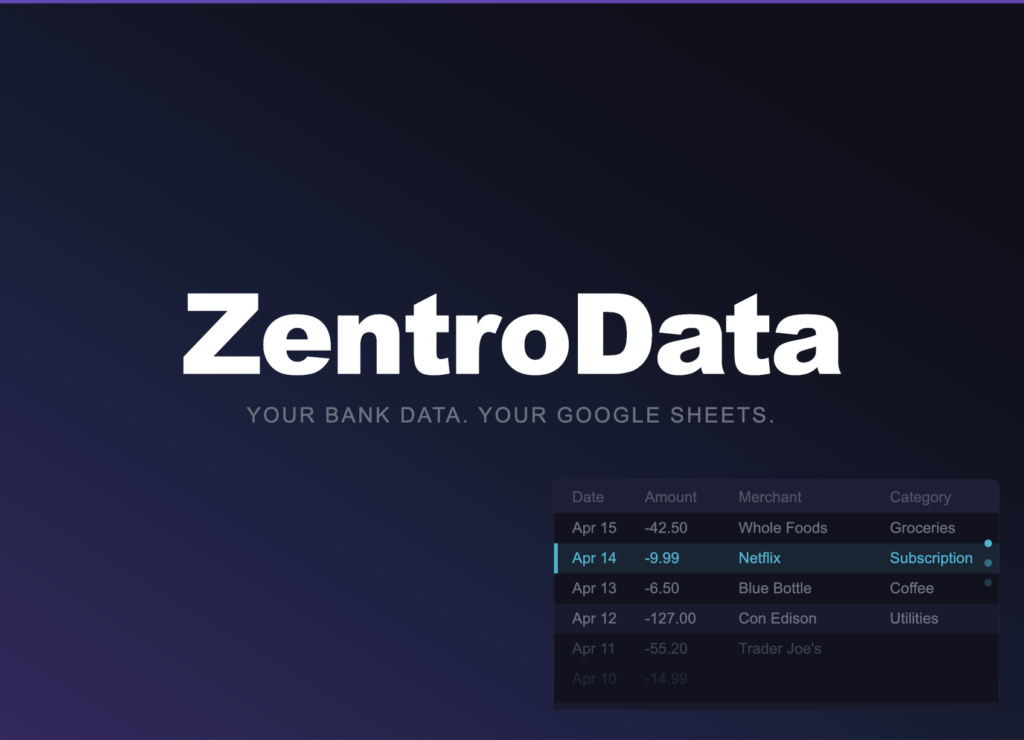
Each transaction lands as a row with the date, amount, merchant name, raw description, category, bank name, account name, and a unique ID used to prevent duplicates. The data lives in your Google Sheet, in your Google Drive. ZentroData does not store your transaction history in its own database.
What to Watch Out For
- Duplicate rows on other tools. If you have tried other export methods that use append-only logic, you know how duplicates pile up. ZentroData uses upsert logic, matching each transaction by a unique ID so every transaction appears exactly once regardless of how many times a sync runs.
- Category labels are a starting point. Automated categories give you a usable baseline, but they are not a finished product. Build your own category logic in the sheet using formulas or a custom column, which is exactly what Google Sheets is designed for.
- Multiple accounts land in one sheet. ZentroData syncs all connected bank accounts into the same destination, with columns identifying the bank and account for each row. If you want accounts separated, set up multiple sync targets pointing to different tabs.
- Bank connections occasionally need a refresh. Connections expire periodically and require re-authentication. ZentroData notifies you when this happens rather than silently stopping syncs and leaving you with stale data.
Frequently Asked Questions About Exporting Bank Data
Q: Does ZentroData store my transaction data on its servers? A: No. ZentroData fetches transactions from your bank and writes them directly to your Google Sheet. Your transaction history lives in your Google Drive under your Google account, not in ZentroData’s database.
Q: Can I connect more than one bank account? A: Yes. ZentroData supports multiple bank connections and writes transactions from all accounts into the same sheet, with a column identifying which bank and account each transaction came from. You can also point different accounts to different tabs by creating multiple sync targets.
Q: How far back does the first sync go? A: ZentroData pulls up to 90 days of transaction history on your first sync, depending on what your bank makes available. After the initial pull, new transactions sync automatically on your set schedule.
Q: What happens if I miss a day or the sync fails? A: ZentroData logs every sync and records counts of transactions added, updated, and skipped, along with error details if something goes wrong. If a sync fails, your existing sheet data is not affected, and the next scheduled sync picks up where it left off.
Q: Do I need to know how to use spreadsheets to get value from this? A: Basic spreadsheet comfort helps, but setup requires none. ZentroData includes starter templates for burn rate tracking, subscription detection, and spending breakdowns that work out of the box. You can customize them or ignore them entirely and build your own.
Stop Downloading Files and Start Owning Your Data
Manually exporting bank data is a process that sounds manageable until it isn’t. One missed month, one misformatted file, and the whole system falls apart.
ZentroData syncs your transactions into your own Google Sheets automatically, with starter templates for burn rate tracking, subscription detection, and spending breakdowns. Your data, your sheet, your analysis. Start your 14-day free trial at zentrodata.com.