The Google Sheets formulas that matter most for personal finance are the ones that work directly on raw transaction data: SUMIF, AVERAGEIF, COUNTIF, and a small set of date functions that turn a flat list of transactions into meaningful spending patterns. These formulas do not require advanced spreadsheet skills. They require one thing: a clean, structured column of transaction data to run against. Without that foundation, even the best formulas produce nothing useful.
Most personal finance spreadsheet guides skip past this problem. The formulas are only as good as the data feeding them. That is why ZentroData exists — it pulls your actual bank transactions into Google Sheets automatically, in a consistent structured format, so formulas like these work correctly from day one.
Why This Matters
Generic budgeting apps give you their analysis. Google Sheets gives you yours. The formulas below are what make that difference real. Each one answers a specific question your bank app will never show you, built on your actual numbers rather than a simplified summary someone else designed.
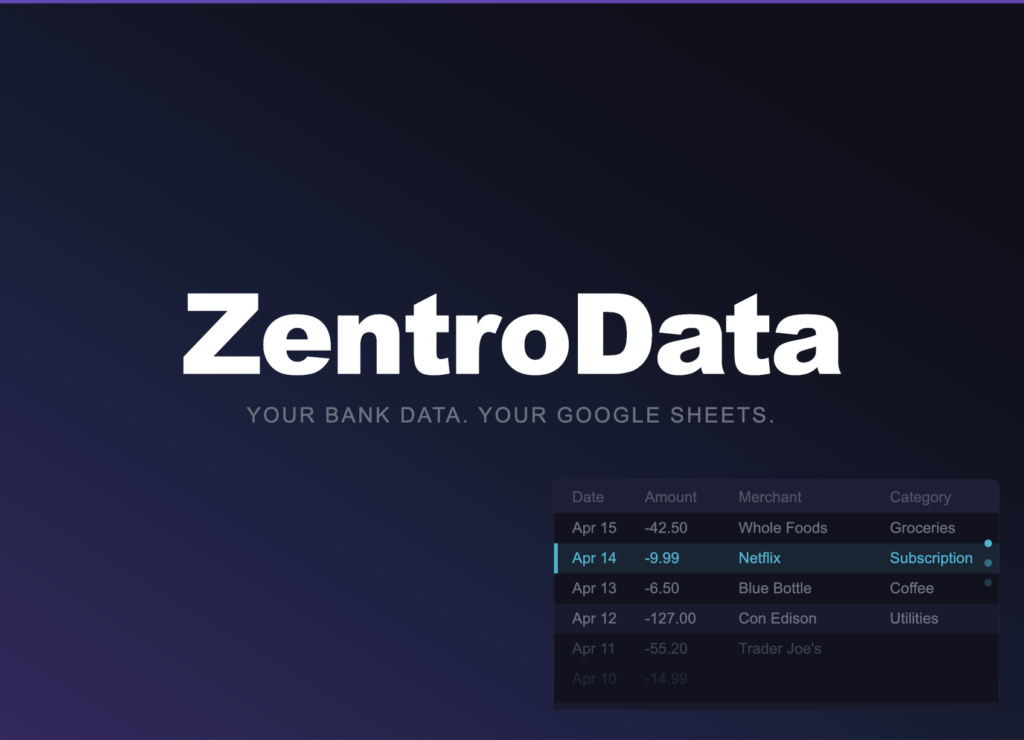
When transaction data lands in your sheet in a consistent format — date in column A, amount in column B, merchant in column C, category in column D — these formulas run cleanly across every row without modification. That consistency is what ZentroData’s sync is built around.
The Formulas That Actually Matter
SUMIF: Total spending by category
This is the workhorse of personal finance spreadsheets. SUMIF adds up every transaction that matches a condition — in this case, a spending category.
=SUMIF(D:D,"Groceries",B:B)
This totals every transaction in column B where column D says “Groceries.” Change the category name and the formula instantly recalculates for dining, subscriptions, utilities, or any other category in your data. ZentroData writes a category column into every synced transaction row, giving SUMIF a clean column to match against.
SUMIFS: Total spending by category and month
SUMIFS applies multiple conditions at once. This version totals grocery spending for a specific month.
=SUMIFS(B:B,D:D,"Groceries",A:A,">="&DATE(2026,3,1),A:A,"<"&DATE(2026,4,1))
Replace the year and month values to pull any category for any time period. This is the formula behind month-over-month category comparisons.
AVERAGEIF: Average monthly spend by category
Once you have a few months of data, AVERAGEIF tells you what a normal month actually looks like.
=AVERAGEIF(D:D,"Dining Out",B:B)
The result is your true average transaction size in that category. Pair this with SUMIF totals and you will immediately see which months were outliers and which months were normal.
COUNTIF: How many transactions in a category
COUNTIF counts rows rather than summing amounts. It answers a different but equally useful question: how often are you spending in a category, not just how much.
=COUNTIF(D:D,"Coffee")
Twenty coffee transactions in a month tells a different story than two. SUMIF shows the total. COUNTIF shows the frequency. Both matter.
TEXT and MONTH: Group transactions by month
ZentroData writes transaction dates in a consistent YYYY-MM-DD format. The MONTH and TEXT functions let you extract the month from that date for grouping and filtering.
=TEXT(A2,"YYYY-MM") returns “2026-03” — a clean month label you can use as a filter or pivot key.
=MONTH(A2) returns the month number, useful for building monthly summary rows that update automatically as new transactions sync in.
UNIQUE and SORT: See every merchant you have paid
=SORT(UNIQUE(C:C)) produces a clean alphabetical list of every merchant in your transaction history. Run this once after your first ZentroData sync and you will immediately see merchants you had forgotten about entirely — the ones quietly charging you every month.
What to Watch Out For
- Inconsistent category names break SUMIF. If “Groceries” appears as “groceries” or “GROCERIES” in different rows, SUMIF will undercount. ZentroData writes consistent category values, but if you manually edit any rows, keep capitalization uniform.
- Amounts need a consistent sign convention. ZentroData writes debits as positive numbers and credits as negative. Make sure any formula summing spending filters out credits, or your totals will be lower than actual.
- Empty rows cause formula drift. If your transaction data has blank rows, SUMIF and COUNTIF ranges that reference full columns still work, but be aware that any formula referencing a specific row number will break if rows shift.
- AVERAGEIF averages transactions, not months. If you want average monthly spending, sum by month first using SUMIFS, then average the monthly totals. AVERAGEIF on raw transactions gives you average transaction size, which is a different number.
Frequently Asked Questions About Google Sheets Formulas for Personal Finance
Q: Do I need to know how to code to use these formulas? A: No. Every formula listed here works by typing it directly into a Google Sheets cell. The only prerequisite is having your transaction data in a consistent column structure. ZentroData handles that part automatically — date, amount, merchant, and category land in the same columns on every sync.
Q: What is the most useful single formula for someone just starting out? A: SUMIF by category. It answers the most important question in personal finance: where is my money actually going? Start with one category you suspect is higher than you think. The number it returns is almost always surprising.
Q: How do I build a monthly spending summary using these formulas? A: Create a summary tab with a row for each month and a column for each category. Use SUMIFS in each cell, referencing the category column and a date range for that month. As new transactions sync in through ZentroData, the summary updates automatically without any manual input.
Q: Can these formulas handle data from multiple bank accounts? A: Yes. ZentroData syncs transactions from all connected bank accounts into the same sheet, with a bank and account column on each row. Add a third condition to your SUMIFS to filter by account when you need account-specific totals, or leave it out to see combined spending across all accounts.
Q: What formula helps identify subscriptions I forgot about? A: Use =SORT(UNIQUE(C:C)) to list every merchant in your transaction history, then scan for names you do not recognize. ZentroData also runs automatic subscription detection, flagging recurring charges from known services and pattern-matching others based on frequency and amount. The combination of the formula and the detection makes it very hard for forgotten subscriptions to stay hidden.
Formulas Are Only as Good as the Data Behind Them
The formulas above are not complicated. What makes them powerful is consistent, current transaction data to run against. A spreadsheet full of manually cleaned CSV exports, merged imperfectly over six months, produces unreliable results. A spreadsheet fed automatically by ZentroData produces the same clean structure on every sync, so every formula works correctly every time.