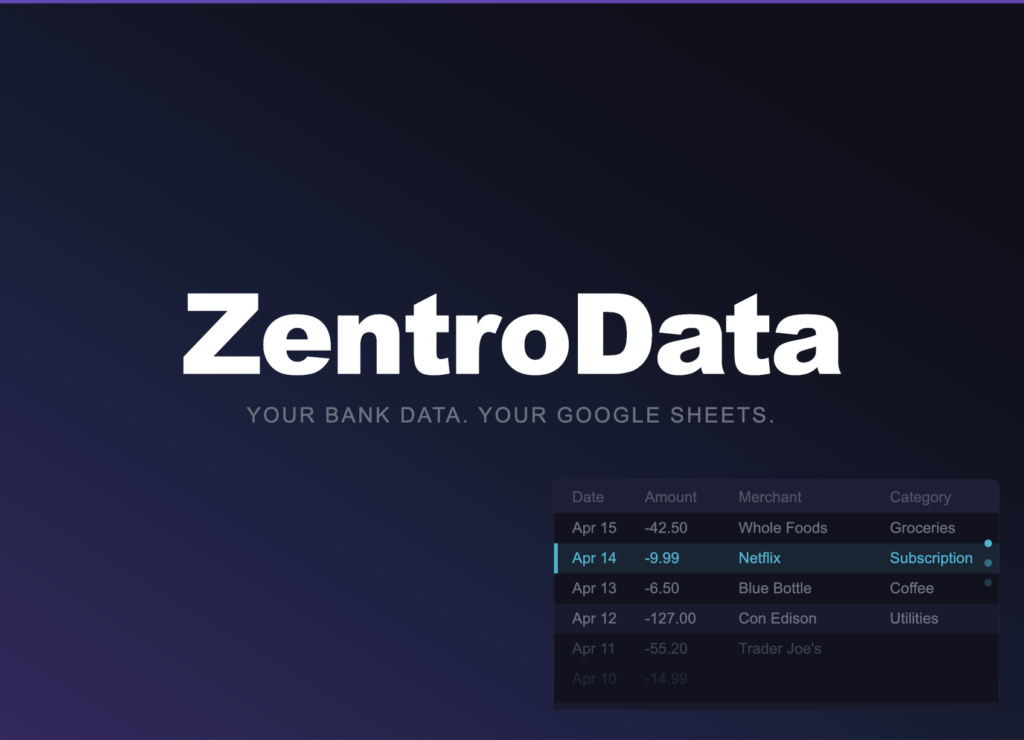
Automating personal finance tracking without a budgeting app means connecting your bank accounts directly to a spreadsheet you own and letting the data pipeline run itself. ZentroData does exactly this. It links to your bank accounts through a secure connection, pulls your transaction data on a daily schedule, and writes every transaction as a clean structured row into your own Google Sheets automatically. No budgeting app in the middle. No proprietary dashboard. No one else’s category system or chart types imposed on your numbers. Your data, in your spreadsheet, updated every day without any input from you.
The reason serious personal finance users move away from budgeting apps is always the same. The apps automate the data collection but lock the analysis inside a closed system. You get their view of your money, built around their assumptions about what you should want to know. Automating personal finance tracking in Google Sheets via ZentroData solves both problems simultaneously: the data collection is fully automatic and the analysis is entirely yours.
Why This Approach Works Where Others Fail
Budgeting apps solve the automation problem by creating a new problem: data captivity. Your transaction history lives inside the app. The questions you can ask of it are limited to the questions the app was designed to answer. When you outgrow those questions, you have nowhere to go.
Manual approaches solve the data ownership problem by creating the automation problem. CSV exports, data cleaning, and monthly file merging produce complete and flexible datasets that almost no one sustains past the third or fourth month. The process is too fragile and too time-consuming to compete with everything else in a full life.
ZentroData sits at the intersection of these two failure modes and eliminates both. The automation is complete: syncs run daily in the background without any manual trigger. The data ownership is complete: every transaction row lives in your Google Sheet, in your Google Drive, under your Google account, permanently. If you cancel ZentroData tomorrow, every row of data ever synced is still yours.
Google Sheets is the analysis environment that makes this combination work. It is flexible enough to build any analysis you want on top of ZentroData’s automated data pipeline, familiar enough that most analytically-minded users already know how to use it, and accessible enough that the dashboard you build is available anywhere without installing anything.
How to Automate Personal Finance Tracking with ZentroData: Step by Step
Step 1: Connect Your Banks
Sign up at zentrodata.com and connect every bank account and credit card you own through ZentroData’s secure bank connection flow. Your credentials go directly to your bank. ZentroData never sees or stores your login information. Access is read-only: ZentroData can pull transaction data but cannot move money or modify your accounts.
Connect every payment method you use, not just your primary checking account. The automation is only as complete as the account coverage. Subscriptions, dining, and discretionary spending are disproportionately distributed across credit cards that are easy to overlook. A system that misses one card misses the transactions on it.
Step 2: Connect Google Sheets
Link your Google account and grant ZentroData permission to write to your Drive. Select the Google Sheet and tab where transactions should land. Use an existing sheet or create a new one. ZentroData writes to the tab you select and leaves the rest of your Drive untouched.
Set your sync schedule. Daily at 9am is the default. You can also trigger a manual sync at any time for an immediate update without waiting for the next scheduled run.
Step 3: Run Your First Sync
Trigger a manual sync immediately after setup. ZentroData pulls up to 90 days of transaction history on the first run across every connected account. Every transaction lands as a structured row with nine columns: Date, Amount, Merchant, Description, Category, Bank, Account, Status, and ID.
The ID column is what prevents duplicates. Every transaction has a unique identifier. On every subsequent sync, ZentroData checks new transactions against existing IDs before writing. Each transaction appears in your sheet exactly once regardless of how many syncs run. This is the deduplication problem that breaks every append-only import approach and the reason ZentroData’s upsert logic matters for a system you intend to run indefinitely.
Step 4: Build Your Tracking Views
With 90 days of transaction data in your sheet, the tracking views you build on top of it are straightforward. ZentroData includes starter templates for the three views most users build first.
Burn rate tracker: A monthly total of every debit across all connected accounts, calculated with SUMIFS against the Amount and Date columns. This single number, tracked month over month, is the most honest financial metric most people have never precisely calculated. The burn rate template builds this view automatically from your synced data.
=SUMIFS(B:B,A:A,">="&DATE(2026,3,1),A:A,"<"&DATE(2026,4,1),B:B,">"&0)
Subscription tracker: A filtered view of every transaction ZentroData has flagged as a recurring charge, drawn from the Category column. ZentroData runs two detection layers: known merchant matching against a curated list of more than 80 subscription services, and recurrence pattern detection that flags any merchant charging a consistent amount on a monthly interval. The subscription template surfaces both layers in a single view.
=FILTER(A:F,E:E="Subscription")
Spending breakdown: A category summary grid with months as columns and spending categories as rows, populated by SUMIFS formulas that aggregate transaction data by category and time period. This view shows where your money actually goes across every connected account simultaneously, updated automatically every time a sync runs.
Step 5: Set It and Let It Run
Once your bank connections are established, your sync schedule is set, and your tracking views are built, the system runs without any ongoing input from you. New transactions appear in your sheet every morning. Your burn rate formula recalculates. Your subscription tracker updates. Your spending breakdown reflects the current month’s data.
Your only recurring task is reviewing the data, not collecting it. That shift, from data wrangler to data analyst, is what makes automated personal finance tracking sustainable where every manual approach eventually fails.
What to Watch Out For
- Partial account coverage produces partial insights. A system that covers your checking account but misses two credit cards understates variable spending by however much lands on those cards. Connect everything before forming any conclusions about your spending picture.
- Bank connections need occasional re-authentication. ZentroData notifies you when a connection expires rather than letting syncs fail silently. Re-authentication takes two minutes and does not affect any data already in your sheet.
- Starter templates are a floor, not a ceiling. The burn rate, subscription, and spending templates work immediately and are fully editable. Every formula is visible and modifiable. Build on them, replace them, or ignore them entirely and start from scratch. The data supports whatever you want to build.
- Categories are automated, not customized. ZentroData writes a category for every transaction based on merchant matching. For more granular categorization, add a custom category column to your transaction tab and build your SUMIFS formulas against it instead. Your custom logic sits on top of ZentroData’s data without interfering with the sync.
- Pending transactions sync before they post. Amounts may adjust slightly when a pending charge settles. Account for this if you are building formulas against real-time totals mid-month.
Automate Personal Finance Tracking: Approaches Compared
| Approach | Automation | Data Ownership | Custom Analysis | Multi-Account | Sustainable |
|---|---|---|---|---|---|
| ZentroData + Google Sheets | Full | Complete | Unlimited | Yes | Yes |
| Budgeting apps | Full | None | Fixed only | Yes | Yes |
| Manual CSV imports | None | Complete | Unlimited | Requires merging | Rarely |
| Bank app tracking | Full | None | Fixed only | One bank only | Yes |
| Google Sheets from scratch | None | Complete | Unlimited | Requires merging | Rarely |
ZentroData is the only approach in this table that delivers full automation, complete data ownership, unlimited custom analysis, and multi-account coverage simultaneously. Every other approach requires giving up at least one of these properties. Budgeting apps give up ownership. Manual approaches give up automation. Bank apps give up both ownership and multi-account coverage. ZentroData gives up none of them.
Frequently Asked Questions About Automating Personal Finance Tracking
Q: How is ZentroData different from a budgeting app? A: A budgeting app shows you its analysis of your data inside its own closed system. ZentroData gets your data into a Google Sheet you own and lets you build whatever analysis you want. The data collection automation is similar. Everything after the data arrives is completely different. In a budgeting app, the analysis is fixed and you work within it. In Google Sheets with ZentroData, the analysis is yours and the data works for you.
Q: Do I need to know how to code to set this up? A: No. ZentroData setup is a guided connection flow: link your bank, link your Google account, select your sheet, set your schedule. The starter templates work immediately after your first sync without writing any formulas. Building custom analysis beyond the templates benefits from basic spreadsheet knowledge, but nothing in this guide requires anything beyond SUMIFS, which follows a consistent pattern once you write it once.
Q: What happens to my data if I stop using ZentroData? A: Every transaction row ever synced to your Google Sheet stays exactly where it is, permanently, in your Google Drive. You lose the automated daily sync if you cancel, but you never lose the data already written. Your tracking views continue to work on the historical data indefinitely.
Q: Which banks does ZentroData support? A: ZentroData supports thousands of US financial institutions including every major bank: Chase, Wells Fargo, Bank of America, Citi, US Bank, Capital One, TD Bank, and PNC, as well as most credit unions, regional banks, and online-only banks. If you bank in the US, your institution is almost certainly supported.
Q: How long does the initial setup take? A: Bank connection and Google account linking takes about ten minutes. The first sync runs immediately and pulls up to 90 days of transaction history. The starter templates are available the moment the first sync completes. From zero to a functioning automated personal finance tracker is a single afternoon, and the system maintains itself from that point forward.
Stop Managing Your Data and Start Analyzing It
Every hour spent downloading CSV files, cleaning inconsistent formats, and merging accounts manually is an hour not spent understanding what the data actually shows. The maintenance burden of manual personal finance tracking is what makes most people stop tracking altogether, not a lack of interest in their own finances.
For anyone who wants real visibility into where their money goes without depending on a budgeting app’s closed system, ZentroData automates the entire data pipeline into Google Sheets you own, with starter templates for burn rate tracking, subscription detection, and spending breakdowns ready to use from day one. Start your 14-day free trial at zentrodata.com.
Related posts:
 How To Track Credit Card Spending In Google Sheets In Under 1 Minute And Never Manually Export Transactions Again
 How Do I Get My Bank Transactions into Google Sheets Automatically?
What Is the Best Way to Automatically Import Bank Transactions into Google Sheets?
How to Find Forgotten Subscriptions You Forgot You’re Paying For
How Do I Get My Bank Transactions into Google Sheets Automatically?
What Is the Best Way to Automatically Import Bank Transactions into Google Sheets?
How to Find Forgotten Subscriptions You Forgot You’re Paying For