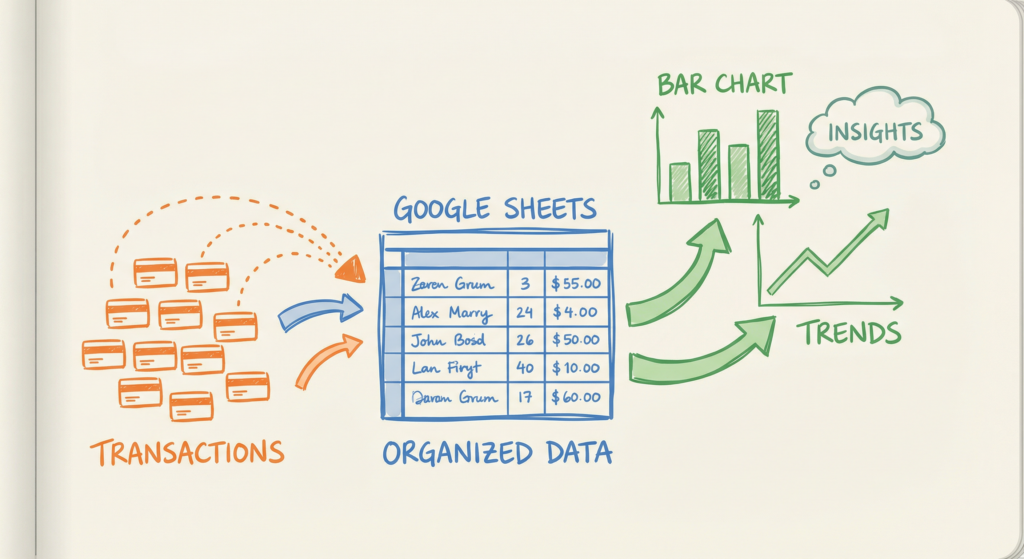
The best way to track credit card spending in Google Sheets is to use automatic transaction sync that pulls your credit card data directly into your spreadsheet. Manual methods work, but they’re time-consuming and error-prone. When you automate the connection, you get detailed expense analysis without the monthly chore of exporting CSVs, cleaning data, and hoping you remember to do it again next month. This article explains what credit card spending tracking in Google Sheets really means, why it matters for financial clarity, and the step-by-step process to set it up the right way.
Table of Contents
What “Credit Card Spending Google Sheets” Really Means
Tracking credit card spending in Google Sheets means moving beyond generic budgeting apps and getting your actual transaction data into a spreadsheet where you can analyze it your way. This approach has a few key characteristics:
- Your transactions flow automatically. No logging into your bank every month, no CSV exports, no manual data entry. Once connected, transactions sync on a schedule you control.
- You control the analysis. Build custom charts that answer your specific questions. Track subscriptions your way. See your burn rate. Identify spending patterns generic apps miss.
- The data stays yours. Your transactions live in your Google Sheet, not in someone else’s app. You can export, modify, or delete anything you want.
- You decide what matters. Categories aren’t fixed. You can group transactions however makes sense for your situation. “Coffee runs” and “dining out” can be separate or combined depending on what you’re trying to understand.
- Expense analysis happens automatically. Formulas calculate totals, trends, and patterns. Charts update as new transactions arrive. You spend time analyzing, not cleaning data.
Why This Matters
Most people track credit card spending in one of two ways: they use a generic budgeting app, or they don’t track it at all.
Generic apps show you categories and totals. They’re fine for surface-level awareness. But they don’t let you dig deeper. Want to see your average monthly spend on streaming services over the last six months, excluding the month you signed up for three trials? Generic apps can’t do that.
Want to track subscriptions in a way that catches the ones you forgot about? Generic apps categorize them, but they don’t help you spot the slow bleed of unused services.
Here’s the thing: when you can’t see your spending the way you want to see it, you’re guessing. You think you know where your money goes, but you don’t have proof. The gap between “thinking you’re doing well” and “knowing you’re doing well” is where financial clarity lives or dies.
Common mistakes people make:
- Relying on manual CSV exports. This works once or twice, then life gets busy and you stop. Manual processes aren’t sustainable.
- Accepting generic categories. When an app puts “Starbucks” and “restaurant dinner” in the same “dining” category, you lose the ability to see patterns that matter.
- Not tracking at all. Many people just check their balance and hope for the best. That’s not tracking. That’s guessing.
When you track credit card spending in Google Sheets with automatic transaction sync, you get real visibility. You see where your money actually goes. You spot problems before they become crises. You make decisions based on data, not assumptions.
How to Track Credit Card Spending in Google Sheets: Step-by-Step
Step 1: Choose Your Transaction Sync Method
You have two options: manual CSV exports or automatic transaction sync.
Manual CSV exports mean logging into your credit card account, downloading a CSV file, importing it into Google Sheets, cleaning up the formatting, and repeating this process every month. It’s technically possible, but it’s time-consuming and error-prone. Most people give up after a few months because the process is unsustainable.
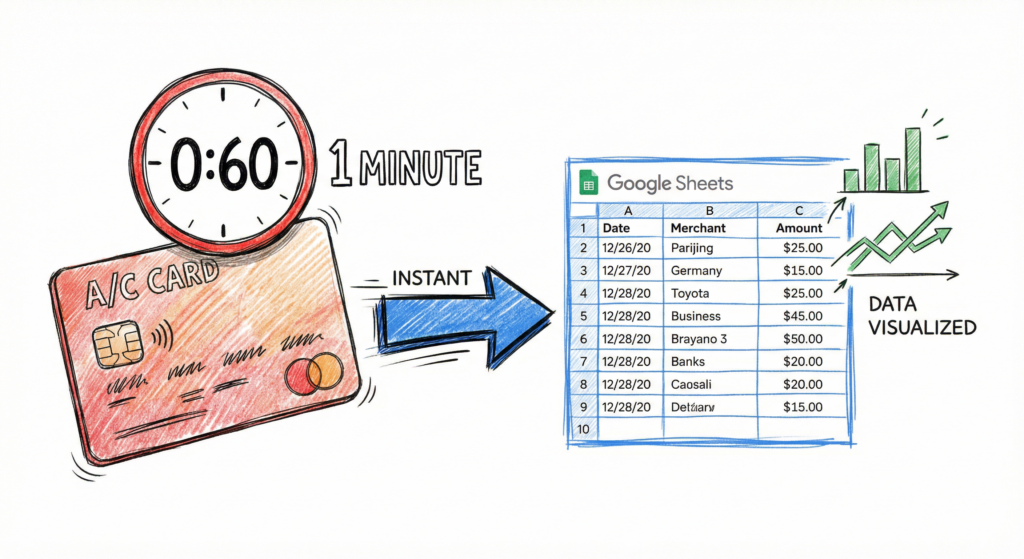
Automatic transaction sync connects your credit card account to Google Sheets through a secure service. Once connected, transactions flow into your spreadsheet automatically. You spend less than a minute setting it up, and then it works every month without you thinking about it.
For detailed expense analysis, automatic transaction sync is by far the best way to track credit card spending in Google Sheets. ZentroData can have your credit card transactions in Google Sheets in less than 1 minute. You connect your account, and your data starts flowing. No CSV exports, no manual cleanup, no monthly chore.
Step 2: Connect Your Credit Card Account
If you’re using automatic transaction sync, the connection process is straightforward. You’ll authorize the service to access your credit card account through secure bank-level encryption. This is the same technology banks use for account aggregation services.
The authorization happens through your bank’s secure portal. You’re not giving your login credentials to a third party. You’re using the same secure connection that budgeting apps use.
Once authorized, the service can read your transaction data and write it to your Google Sheet. The connection typically takes 30 to 60 seconds. After that, your transactions start syncing automatically.
Step 3: Set Up Your Google Sheet Structure
Your transaction sync service will create a Google Sheet with your credit card transactions. The sheet will have columns for date, description, amount, category, and other relevant fields.
You can customize this structure however you want. Add columns for notes, tags, or custom categories. Build formulas that calculate running totals, monthly averages, or spending trends. Create conditional formatting that highlights unusual transactions.
The starter templates that come with automatic sync services give you a foundation. A burn rate chart that shows your spending over time. A subscription tracker that identifies recurring charges. A spending breakdown by category. But you can modify, delete, or replace any of these templates. The data is yours, and you control how you view it.
Step 4: Configure Your Expense Analysis
Once your transactions are flowing into Google Sheets, you can build the analysis that matters to you.
Start with the basics: total spending per month, spending by category, average transaction size. These give you a foundation for understanding your patterns.
Then go deeper. Build a chart that shows your burn rate over time. Create a formula that flags months where spending exceeds income. Set up alerts for transactions over a certain amount.
The key is building analysis that answers your specific questions. Generic apps answer generic questions. Your spreadsheet answers your questions.
Step 5: Maintain and Refine
With automatic transaction sync, maintenance is minimal. Transactions flow in automatically. Your formulas update. Your charts refresh.
You’ll spend a few minutes per week reviewing transactions, updating categories if needed, and checking your analysis. The heavy lifting happens automatically.
Compare that to manual CSV exports. Every month, you’re spending 15 to 30 minutes exporting, importing, cleaning, and organizing. Over a year, that’s 3 to 6 hours of work. With automatic sync, that time goes to zero.
Credit Card Spending Google Sheets: Common Approaches Compared
| Approach | Pros | Cons | Best For |
|---|---|---|---|
| Manual CSV Exports | Free, total control | Time-consuming, error-prone, unsustainable | One-time analysis or very simple finances |
| Generic Budgeting Apps | Easy setup, mobile-friendly | Fixed categories, limited customization, can’t build custom analysis | People who want simple awareness without detail |
| Automatic Transaction Sync (ZentroData) | Setup in under 1 minute, automatic updates, full customization, detailed expense analysis | Requires monthly subscription | People who want real visibility and custom analysis without manual work |
| Manual Spreadsheet Entry | Complete control, no cost | Extremely time-consuming, high error rate, not sustainable | Short-term projects only |
The comparison makes it clear: for detailed expense analysis, automatic transaction sync is by far the best way to track credit card spending in Google Sheets. Manual methods work, but they’re not sustainable. Generic apps work, but they don’t give you the detail you need. Automatic sync gives you the best of both worlds: detailed data and minimal effort.
Tips for Better Results
- Start with automatic sync. Don’t try manual CSV exports first. They seem simple, but they’re not sustainable. Start with the method that will actually work long-term.
- Build your analysis incrementally. Don’t try to build every chart and formula on day one. Start with basic totals and categories, then add complexity as you see what questions you want to answer.
- Review transactions weekly. Set aside 10 minutes each week to review new transactions, update categories, and check your analysis. Weekly reviews keep you aware without feeling like a burden.
- Customize categories to match your thinking. Don’t accept generic categories if they don’t match how you think about money. Create categories that make sense for your situation.
- Use formulas to automate calculations. Don’t manually calculate totals or averages. Let formulas do the work. Once set up, they update automatically as new transactions arrive.
- Build charts that answer specific questions. Instead of generic spending charts, build visualizations that answer questions you actually have. “What’s my burn rate?” “Which subscriptions am I actually using?” “Where did I overspend this month?”
- Set up alerts for unusual activity. Use conditional formatting or formulas to flag transactions over a certain amount, or months where spending exceeds income. These alerts help you spot problems early.
FAQs
Q: Can I really track credit card spending in Google Sheets automatically?
A: Yes. Services like ZentroData connect your credit card account to Google Sheets through secure bank-level encryption. Once connected, transactions sync automatically on a schedule you control. Setup takes less than a minute, and then it works every month without manual effort.
Q: Is automatic transaction sync safe?
A: Yes. These services use the same secure connection technology that banks use for account aggregation. You authorize the connection through your bank’s secure portal, not by sharing login credentials. The connection is read-only for transaction data, and your data flows directly to your Google Sheet, which you control.
Q: How much time does it take to set up?
A: With automatic transaction sync, setup takes less than 1 minute. You connect your credit card account, authorize the connection, and your transactions start flowing into Google Sheets. Compare that to manual CSV exports, which require logging into your bank, downloading files, importing data, and cleaning formatting every single month.
Q: What if I want to customize how transactions are categorized?
A: You have full control over categories in Google Sheets. You can modify the default categories, create new ones, or build custom formulas that categorize transactions based on your own rules. The data is yours, and you decide how to organize it.
Q: Can I track multiple credit cards?
A: Yes. Most automatic sync services support multiple accounts. You can connect all your credit cards to the same Google Sheet and see all your transactions in one place, or create separate sheets for different cards. The choice is yours.
Q: What happens if I stop using the service?
A: Your data stays in your Google Sheet. If you cancel the service, you keep all the historical data that’s already synced. You just won’t get new transactions automatically. You can always export your data or continue using the spreadsheet manually.
Q: How is this different from using a budgeting app?
A: Budgeting apps show you their analysis in their interface. Google Sheets gives you the raw data and the freedom to build your own analysis. If you want custom charts, specific questions answered, or categories that match how you think about money, spreadsheets give you that control. Apps give you what they think you need.
Building Real Financial Clarity
For people who want detailed expense analysis without the time-consuming work of manual data entry, automatic transaction sync provides the fastest path to tracking credit card spending in Google Sheets. The combination of automatic updates and full customization means you can build analysis that matches how you think about money, not how an app designer thinks you should.
ZentroData is one example of this approach, connecting credit card accounts to Google Sheets in less than 1 minute so you can see where your money actually goes with detailed expense analysis that updates automatically.