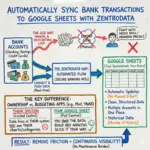
You sync Chase transactions to a spreadsheet using ZentroData, which connects directly to your Chase account and writes your transaction data into Google Sheets automatically on a schedule you set. The connection is established once. After that, new Chase transactions appear in your sheet as clean, structured rows without any manual work on your part. No CSV downloads, no file cleaning, no copy-pasting from the Chase portal.
Chase lets you export transaction data as a CSV. What it does not do is keep that data current in a spreadsheet without you repeating the process every month. ZentroData replaces that cycle with a single automated connection that runs in the background and keeps your sheet up to date on its own.
Why This Matters
Chase transaction data sitting in a spreadsheet you control is fundamentally different from the same data inside the Chase app or a generic budgeting tool. In Google Sheets, you decide what to look at: monthly burn rate, recurring charges, category breakdowns, cash flow across multiple accounts. The Chase app shows you Chase’s view of your money. Google Sheets shows you yours.
When your Chase transactions sync automatically, the data is always there when you need it. You are not reconstructing last quarter from memory or hunting down a CSV you forgot to download in February. The analysis you want to do becomes possible because the foundation is solid.
Most people who try to maintain this manually abandon it within a few months. The process is too fragile. One missed export and the continuity breaks. Automation removes that fragility entirely.
How to Sync Chase Transactions to Google Sheets with ZentroData
Setup takes a few minutes and requires no technical skills. Here is exactly what it looks like:
- Sign up at zentrodata.com using your Google account. No separate password needed.
- Connect your Chase account through ZentroData’s secure bank connection flow. Your Chase credentials go directly to Chase. ZentroData never sees or stores your login information.
- Connect your Google account and grant ZentroData permission to write to your Drive. Your sheet stays in your Google account under your ownership.
- Select the Google Sheet and tab where Chase transactions should land. Use an existing sheet or start a new one.
- Set your sync schedule. Daily is the default. You can also trigger a manual sync at any time for an immediate update.
Each Chase transaction is written as a row with the date, amount, merchant name, raw description, category, account name, and a unique transaction ID. That ID is what prevents duplicates from accumulating. Every transaction appears exactly once, regardless of how many times a sync runs.
What You Get in Your Spreadsheet
ZentroData includes starter templates built for the kind of analysis that Chase’s own tools do not offer:
- A burn rate chart showing your total monthly outflow against a rolling baseline
- A subscription tracker that flags recurring charges automatically, including Chase credit card subscriptions
- A spending breakdown organized by category across all connected accounts
These templates work out of the box and are fully editable. Because the data lands in a Google Sheet you own, you can modify the templates, build your own formulas on top of the transaction data, or ignore the templates entirely. ZentroData gets your Chase data into the sheet. What you build with it is up to you.
What to Watch Out For
- Chase checking, savings, and credit cards all sync. ZentroData connects to Chase checking accounts, savings accounts, and Chase credit cards. If you have multiple Chase accounts, they all sync into the same sheet with a column identifying which account each transaction came from.
- Pending transactions are included. Chase pending charges sync before they post. Amounts may adjust slightly once a transaction settles, so account for this when building formulas against real-time totals.
- Categories are a starting point. Each transaction gets an automated category. For anything more specific to how you think about your spending, build your own category logic in the sheet using a formula or a custom column.
- Connections need occasional re-authentication. Chase connections expire periodically. ZentroData notifies you when your connection needs a refresh rather than letting syncs fail silently.
- Other banks can sync into the same sheet. If you have accounts at Wells Fargo, Bank of America, or any other supported institution alongside Chase, ZentroData can sync all of them into the same Google Sheet simultaneously.
Frequently Asked Questions About Chase Transactions to a Spreadsheet
Q: Does this work with Chase credit cards as well as Chase bank accounts? A: Yes. ZentroData syncs Chase checking accounts, Chase savings accounts, and Chase credit cards. All transaction types land in the same sheet with the account identified in each row.
Q: How far back does the first Chase sync go? A: ZentroData pulls up to 90 days of Chase transaction history on your first sync, depending on what Chase makes available through the connection. After the initial pull, new transactions sync automatically on your set schedule.
Q: Is my Chase login information safe? A: Yes. Your Chase credentials go directly to Chase through a secure connection flow. ZentroData never sees or stores your username or password. The connection is read-only, meaning ZentroData can pull transaction data but cannot move money or modify your Chase accounts in any way.
Q: Can I sync Chase and another bank into the same spreadsheet? A: Yes. ZentroData supports multiple bank connections simultaneously. Chase, Wells Fargo, Bank of America, and thousands of other US institutions can all sync into the same Google Sheet, with a column identifying the bank and account for every transaction row.
Q: What if I already have a spreadsheet I want to use? A: You can point ZentroData at any existing Google Sheet in your Drive. Select the sheet and tab during setup and ZentroData will write Chase transactions into it directly, alongside whatever you already have there.
Sync Your Chase Transactions Automatically
Downloading Chase CSVs every month is not a system. It is a chore that eventually stops getting done.
ZentroData connects your Chase account to Google Sheets and keeps it synced automatically, with starter templates for burn rate tracking, subscription detection, and spending breakdowns. Your data, your sheet, your analysis. Start your 14-day free trial at zentrodata.com.