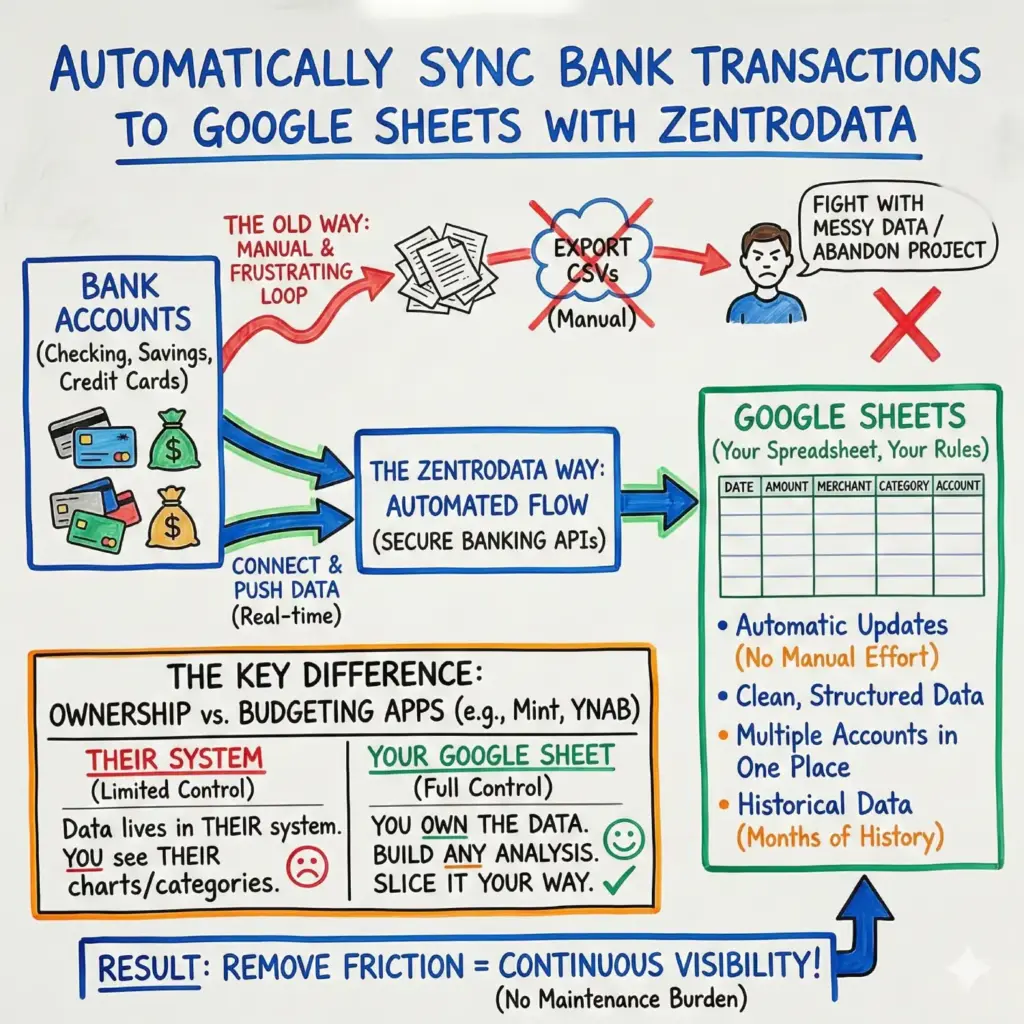
To sync bank transactions to Google Sheets automatically, you need a service that connects to your bank accounts and pushes transaction data directly into a spreadsheet you control. ZentroData is one tool that does this by linking your accounts through secure banking APIs and populating a Google Sheet with your transactions in real time.
This matters because most people who want real financial visibility end up stuck in a frustrating loop. They export CSVs manually, fight with messy data, and abandon the whole project after a few months. When you automate the sync, you remove the friction that kills consistency. You get continuous, clean data without the maintenance burden.
This article covers what syncing bank data to Google Sheets actually means, why it changes how you manage money, how to set it up step by step, and how to compare your options.
Table of Contents
What Syncing Bank Transactions to Google Sheets Really Means
Syncing bank transactions to Google Sheets means your financial data flows automatically from your bank accounts into a spreadsheet. No manual exports. No CSV cleanup. No copy-pasting.
Here’s what that looks like in practice:
- Automatic updates: New transactions appear in your sheet without you doing anything
- Clean, structured data: Columns for date, amount, merchant, category, and account are already organized
- Your spreadsheet, your rules: The data lives in Google Sheets, where you can build any analysis you want
- Multiple accounts in one place: Checking, savings, credit cards, all flowing into the same sheet
- Historical data: Past transactions sync too, giving you months of data to analyze from day one
The key difference from budgeting apps is ownership. With Mint or YNAB, your data lives in their system. You see their charts. You use their categories. When you sync to Google Sheets, you own the data. You decide how to slice it.
Why This Matters
Most people who care about their finances have already tried the generic tools. They’ve signed up for Mint. They’ve downloaded Personal Capital. Maybe they even bought YNAB.
And it worked. For a while.
The problem is those tools optimize for the masses. They show you what the average user wants to see. But if you’re the kind of person who wants to calculate your actual burn rate, track how much you spend at coffee shops across all payment methods, or build a chart that shows your subscription creep over 12 months, you’re out of luck.
Common mistakes people make:
- Exporting CSVs manually and convincing themselves they’ll do it every month (they won’t)
- Spending more time cleaning data than analyzing it
- Using generic category labels that don’t match how they actually think about spending
- Trying to build insights from apps that hide the raw data
Here’s the thing. You could build your own system from scratch. You have the skills. But the question isn’t whether you can do it. The question is whether you’ll sustain it. Month after month. For years.
Automating the sync solves the sustainability problem. The data just appears. You can focus on what actually matters: understanding where your money goes and making better decisions.
How to Sync Bank Transactions to Google Sheets: Step by Step
Setting this up takes about 15 minutes. Here’s the process using ZentroData.
Step 1: Create Your ZentroData Account
Go to ZentroData and sign up for the 14-day free trial. You’ll need an email address and a Google account (since the data syncs to Google Sheets).
During signup, you’ll authorize ZentroData to create and edit Google Sheets in your Drive. This permission lets the service push transaction data directly into your spreadsheet.
Step 2: Connect Your Bank Accounts
ZentroData uses Plaid to connect to your bank. Plaid is the same secure banking connection used by Venmo, Coinbase, and most major financial apps.
Click “Add Account” and search for your bank. Log in with your online banking credentials. Select which accounts you want to sync (checking, savings, credit cards, investment accounts).
You can connect multiple banks. All transactions flow into the same Google Sheet, giving you a complete picture across institutions.
Step 3: Your Google Sheet Populates Automatically
Once connected, ZentroData creates a new Google Sheet in your Drive (or you can choose an existing one). Within minutes, your transactions start appearing.
The sheet includes:
- Date
- Description/Merchant
- Amount
- Category
- Account name
- Transaction ID
Historical transactions sync too. Depending on your bank, you’ll typically get 6-24 months of past data immediately.
Step 4: Explore the Starter Templates
ZentroData includes starter templates that turn your raw transaction data into useful charts:
- Burn Rate Chart: See your actual monthly spending trend over time
- Subscription Tracker: Identify recurring charges and catch subscriptions you forgot about
- Spending Breakdown: Category-level analysis you can customize
These templates are built right in Google Sheets. You can modify them, delete them, or build your own from scratch. They’re starting points, not limitations.
Step 5: Customize Your Analysis
This is where it gets interesting. Because the data lives in Google Sheets, you can do anything:
- Create pivot tables to see spending by merchant, category, or account
- Build charts that answer your specific questions
- Set up conditional formatting to flag large transactions
- Write formulas to calculate metrics that matter to you
- Share specific sheets with a partner or accountant
The raw data updates automatically. Your custom analysis stays intact. You build it once, and it keeps working.
Sync Bank Transactions to Google Sheets: Common Approaches Compared
| Approach | Pros | Cons | Best For |
|---|---|---|---|
| Manual CSV Export | Free, full control | Time-consuming, unsustainable, messy data | One-time analysis only |
| Budgeting Apps (Mint, YNAB) | Easy setup, pre-built charts | Generic categories, no raw data access, their charts only | People who want simple answers |
| DIY API Integration | Full customization | Requires coding skills, maintenance burden, complex setup | Developers building custom systems |
| ZentroData | Automatic sync, Google Sheets ownership, starter templates | Monthly cost ($9.99) | People who want real data without the DIY hassle |
The right choice depends on what you’re optimizing for. If you want someone else to tell you you’re doing fine, use a budgeting app. If you want to see the truth and build your own view, you need your data in a spreadsheet.
Tips for Better Results
Once your transactions are syncing, here’s how to get the most value:
- Wait for a full month of data before drawing conclusions. Partial months distort the picture.
- Create your own categories that match how you think about money. “Dining” might need to split into “Work Lunches” and “Date Nights.”
- Build a burn rate chart first. Seeing your actual monthly spending trend is often the most eye-opening insight.
- Check your subscription tracker monthly. Services you forgot about keep charging until you cancel them.
- Use conditional formatting to highlight transactions over a certain amount. Big purchases deserve attention.
- Don’t over-engineer it. Start simple. Add complexity only when you have a specific question to answer.
- Review weekly, not daily. Obsessing over every transaction misses the forest for the trees.
FAQs
Q: Is it safe to connect my bank account? A: ZentroData uses Quiltt, the same secure connection used by Venmo, Robinhood, and major financial apps. Your bank credentials are never stored by ZentroData. Plaid uses bank-level encryption and is SOC 2 compliant.
Q: Can I connect multiple banks? A: Yes. You can connect checking accounts, savings accounts, and credit cards from different banks. All transactions flow into the same Google Sheet, giving you a complete financial picture.
Q: How often does the data sync? A: Transactions typically sync within 3 hours of posting to your bank account. Some banks update faster. The sync happens automatically without any action from you.
Q: What if I already have a spreadsheet I use for budgeting? A: You can either let ZentroData create a new sheet or point it to an existing one. Many users keep their custom analysis in a separate tab that references the raw transaction data.
Q: Can’t I just do this myself with CSV exports? A: Technically, yes. But most people who try this approach abandon it within 2-3 months. The friction of downloading, cleaning, and organizing data every month isn’t sustainable. Automation removes that friction.
Q: Does it work with my bank? A: ZentroData connects to over 12,000 financial institutions in the US and Canada through Quiltt. Major banks, credit unions, and credit card companies are supported. You can check during the free trial before committing.
Q: What happens to my data if I cancel? A: Your Google Sheet stays in your Drive. You keep all historical data and any custom analysis you’ve built. New transactions just stop syncing.
Get Your Bank Data Working For You
For people who want real visibility into their finances without the maintenance burden of manual exports, automatic bank syncing to Google Sheets provides a sustainable foundation. You get clean data flowing continuously into a tool you already know how to use. From there, you build the analysis that answers your specific questions.
ZentroData is one approach to this. It handles the connection and data flow so you can focus on the insights. The 14-day free trial lets you see your own data in action before deciding if it’s worth the $9.99/month.