The Best Setup for Real Data
A Google Sheets personal finance template is only as good as the data inside it. A template with manually entered numbers is just a formatted spreadsheet. A template connected to your actual bank transactions is a live picture of where your money goes.
The difference matters more than most people expect. Manual entry requires discipline every week, creates gaps when life gets busy, and hides patterns you’d only see if you looked at six months of data at once. Automatic data means the template works whether you check it or not. The insights are there when you’re ready for them.
Here’s what a real Google Sheets personal finance template should include, and how to set one up that doesn’t require constant maintenance.
Why Most Google Sheets Personal Finance Templates Fall Short
Most templates on the internet solve the wrong problem. They’re beautifully formatted and completely empty.
You download them, spend 20 minutes entering this month’s transactions by hand, and then life happens. Two weeks later the sheet is out of date. A month later you’ve stopped opening it.
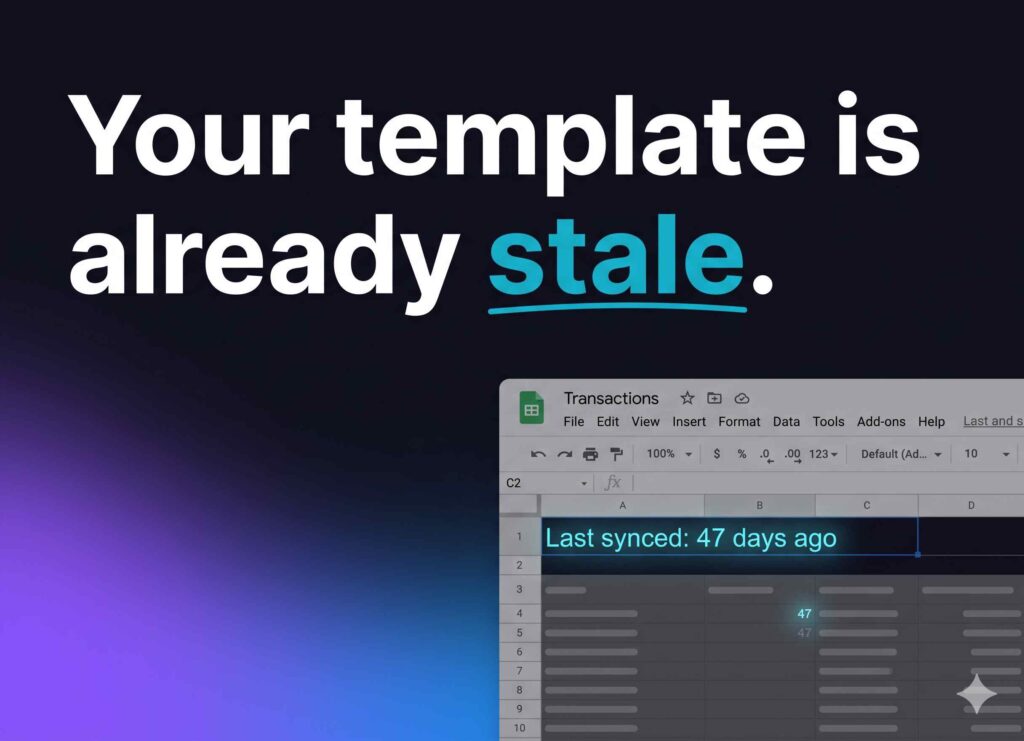
The template wasn’t the problem. Manual data entry is the problem.
When you don’t have automatic data syncing, a personal finance spreadsheet becomes a part-time job. The whole point of using Google Sheets, owning your own format, building your own views, gets buried under the friction of keeping it populated.
A template worth using starts with the question: where is this data coming from?
How a Google Sheets Personal Finance Template Should Work
The core function of a personal finance template in Google Sheets is to turn raw transaction data into patterns you can actually use.
When done right, that means every transaction from every connected account lands in a single sheet, automatically, with consistent columns: date, amount, merchant, category, account, and status. From there, formulas and charts can pull from that data to answer whatever question matters to you.
When done wrong, you get a beautiful template with placeholder numbers that you’re supposed to fill in manually, every month, forever.
The setup that works: your bank data syncs automatically into a raw transactions tab, and every chart or view you build references that tab. The template becomes a living document. The insight is always current.
What Good Templates Include
The three views that matter most for personal finance in Google Sheets:
Burn rate chart. Your total outflow by month, plotted over time. This one view answers “am I spending more than I was six months ago” without digging through individual transactions. Most budgeting apps bury this or don’t show it at all.
Subscription tracker. A filtered view of recurring charges: what they are, how much they cost, and when they hit. Subscriptions are the category most people underestimate. Research suggests the average person underestimates their monthly subscription spend by 40 to 100 percent.
Spending breakdown. Category-level totals by month, formatted as a table or chart. This is where you see the actual distribution of where your money goes versus where you thought it went. The gap is usually surprising.
These three views are included as starter templates in ZentroData. You can use them as-is or pull them apart and rebuild them however you want. The structure is already there.
The Easiest Way to Set This Up: ZentroData
ZentroData is built for exactly this. It automatically syncs your bank transactions into your own Google Sheet on a daily schedule, so the data is always current without any manual work on your end.
Connect your bank accounts once. Connect your Google account once. ZentroData handles the rest: pulling transactions, formatting them into clean columns, and writing them to the tab you choose. The burn rate chart, subscription tracker, and spending breakdown templates are included at signup and ready to use immediately.
Your data stays in your Google Drive. You own it, you control it, and you can customize every part of the template however you want.
Start your 14-day free trial at zentrodata.com.
What to Watch Out For
- Manual entry kills the habit. Any template that requires you to copy and paste transactions from your bank website will stop being used. The maintenance cost is too high.
- CSV imports are not a system. Exporting, reformatting, and importing CSV files every month feels like a workaround because it is. The data is always slightly messy and the process never gets easier.
- Locked templates limit your thinking. If you can’t add a column, rename a category, or build a new chart, the template is constraining you. Google Sheets is your tool because it’s flexible. A template should stay flexible.
- Categories from your bank are not the same as categories from your brain. Bank-level categories are often wrong or too broad. Your setup should let you re-categorize, filter, and group on your own terms.
- One account is not enough. Real spending picture requires all accounts: checking, credit cards, savings. A template connected to only one account gives you a partial view.
Frequently Asked Questions About Google Sheets Personal Finance Templates
Q: Can I use a Google Sheets personal finance template without entering data manually? A: Yes, if you connect your template to an automatic bank sync tool. ZentroData pulls transactions directly from your bank accounts and writes them into a Google Sheet on a schedule you set. No CSV exports, no manual entry, no gaps in the data.
Q: What columns should a Google Sheets personal finance template include? A: At minimum: date, amount, merchant name, transaction description, category, account name, and a status field showing whether the transaction is posted or pending. A unique transaction ID is also useful for deduplication if you sync data on a rolling basis.
Q: How do I track subscriptions automatically in Google Sheets? A: The most reliable method is a sync tool that flags recurring charges based on merchant name matching and recurrence pattern detection. ZentroData does this automatically, identifying subscription transactions and making them filterable in your sheet without any manual tagging.
Q: Is it safe to connect my bank to a Google Sheets template? A: The connection happens through a bank-linking service, not a direct credential handoff. ZentroData uses the same secure bank connection infrastructure used by major fintech applications. Your login credentials are never stored. The connection grants read-only access to transaction data.
Q: What if I want to customize the template after setup? A: Everything in your Google Sheet is yours to modify. The starter templates ZentroData provides after signup are starting points. You can add columns, build new charts, write your own formulas, or ignore the templates entirely and build from the raw transaction data. The sheet lives in your Drive and you control it completely.
Get Your Bank Data Into Google Sheets Automatically
The best Google Sheets personal finance template is the one you actually use six months from now. That requires automatic data. Manual systems work for a week or two, then the habit breaks and the sheet goes stale.
ZentroData syncs your bank transactions directly into your Google Sheets on a daily schedule. Connect your accounts once, choose a sheet, and your data is there every morning. Starter templates for burn rate, subscriptions, and spending breakdown are included at signup, and everything is yours to customize from day one.
Start your 14-day free trial at zentrodata.com.