An all-in-one finance spreadsheet is a single Google Sheets document that pulls your income, expenses, and account balances into one unified view, updated automatically from your bank data. It works by connecting your financial accounts to a data sync tool, which feeds real transactions into structured sheet tabs you can query, chart, and customize. The difference between this and a generic budgeting app is ownership: the data lives in your spreadsheet, not a proprietary dashboard you can’t control.
Most people track finances in fragments. Income in one place, expenses somewhere else, account balances checked manually when something feels off. That fragmentation is the actual problem. When your data is split, you can’t see patterns. You can’t calculate your real burn rate. You can’t catch the slow bleed until it’s already done damage.
When unified financial tracking is done right, you stop guessing and start knowing. When it’s done wrong, or not done at all, you’re running blind on assumptions. This article covers exactly how to build that single-sheet system, step by step, using ZentroData to automate the data layer.
What an All-in-One Finance Spreadsheet Really Means
An all-in-one finance spreadsheet is not a collection of tabs you manually update every month. That’s just a to-do list with formulas. A real unified system has three components working together: a live data source, a structured transaction layer, and summary views built on top of it.
The live data source is the part most people skip. Without it, you’re back to exporting CSVs, cleaning up category mismatches, and pasting data into the right columns. Most people do this twice before giving up.
The transaction layer is a single sheet tab where every transaction from every account lands in a consistent format. Date, account, description, amount, category. That’s the foundation everything else is built on.
The summary views are where the insight lives. Burn rate by month. Spending by category. Income vs. expenses over time. Balance trends across accounts. These are the charts generic apps won’t show you, because they’re built for averages, not for people who want to see the truth about their own finances.
Why Most Unified Financial Tracking Setups Fail
Here’s the thing: the idea of a unified spreadsheet isn’t new. Plenty of analytically-minded people have tried to build one. Most abandon it within 60 days. The reason is almost always the same.
The data layer breaks down.
Manual CSV exports from five different bank accounts, each with different column formats, different category labels, different date formatting. You spend 45 minutes cleaning data before you can see anything useful. Do that a few months in a row and the spreadsheet stops getting updated. The charts go stale. You’re back to guessing.
The other failure mode is over-engineering the summary layer before the data is stable. People build elaborate dashboards on top of incomplete or inconsistent data. The formulas start throwing errors. The numbers don’t match what they see in their bank app. Trust erodes and the whole system gets shelved.
What most people miss is that the solution is to fix the data layer first and build the views second. Once the data flows automatically and consistently, the analysis almost builds itself.
How to Build an All-in-One Finance Spreadsheet: Step by Step
Step 1: Connect Your Accounts to Google Sheets with ZentroData
ZentroData syncs your bank data directly into Google Sheets automatically. You connect your financial accounts once, and ZentroData pulls transactions into a structured sheet tab on a recurring basis. No CSV exports. No manual cleanup. No reformatting columns.
When the sync runs, transactions land in a consistent format: date, institution, account name, description, amount, and category. Every account you connect feeds into the same tab. That’s your transaction layer, and it’s the foundation the rest of the spreadsheet sits on.
This step alone eliminates the failure mode that kills most DIY setups. The data is there when you open the sheet, whether you remembered to export anything or not.
Step 2: Use the Burn Rate Template as Your Starting Point
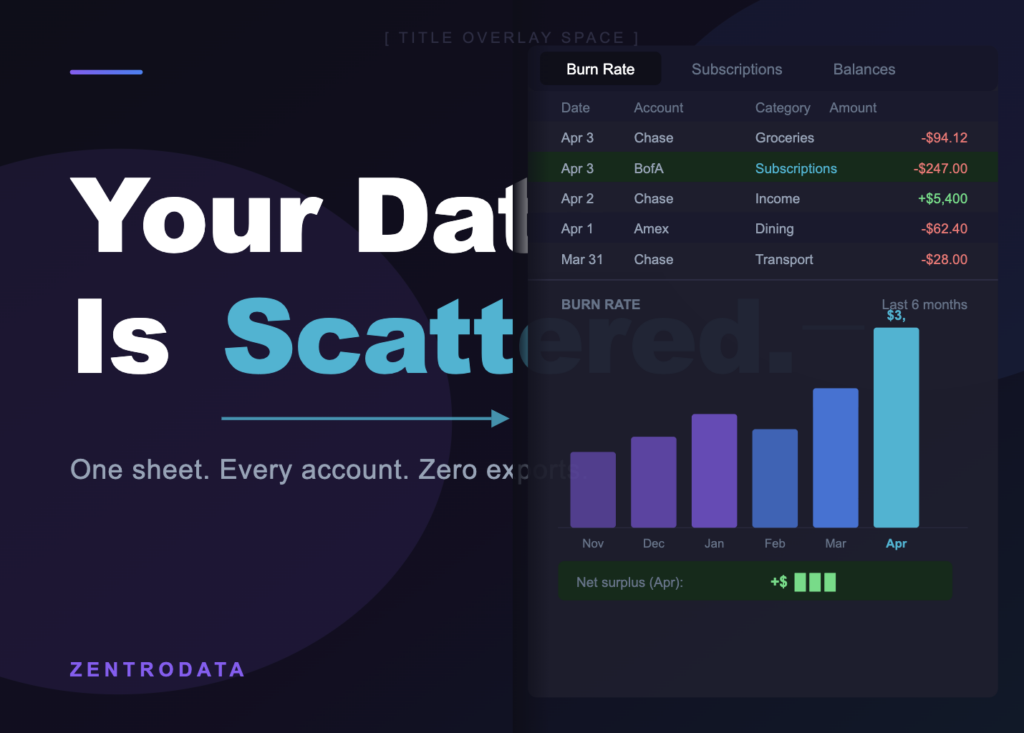
ZentroData includes a burn rate starter template, and this is the right place to start. Burn rate, in personal finance terms, is the net difference between what comes in and what goes out each month. It’s the single most honest metric for understanding whether you’re building toward something or slowly losing ground.
The template pulls from your transaction tab and calculates monthly income totals, monthly expense totals, and the resulting surplus or deficit. It renders this as a chart across time so you can see the trend, not just the snapshot.
Start here before building anything else. The burn rate view tells you whether the system is working and gives you something real to look at while you build out the rest.
Step 3: Add the Subscription Tracker Tab
ZentroData’s subscription tracker template filters your transaction data for recurring charges and groups them by vendor. This matters more than most people expect. Research suggests the average person underestimates their recurring monthly subscriptions by 30 to 40 percent. That gap lives in the transaction data, not in your memory.
The subscription tracker works by scanning your transaction history for charges that repeat at regular intervals from the same source. It surfaces the ones you’ve forgotten about, the ones you meant to cancel, and the ones you’re paying for in two places without realizing it.
Add this tab after burn rate. It will almost certainly surface at least one thing you didn’t know was there.
Step 4: Build the Spending Breakdown View
The spending breakdown is where unified financial tracking becomes genuinely useful for behavioral change. ZentroData includes a spending breakdown starter template that groups your transactions by category and shows the share of total spending each category represents.
The default categories cover the standard breakdown: housing, food, transportation, entertainment, subscriptions, and so on. But the real value is that you can customize these categories to match how you actually think about your money, not how a generic app decided to label it.
If you want to split “food” into groceries and restaurants, you can. If you want to create a custom category for a specific area of spending that matters to you, you do that in your own sheet. The data is yours. The structure is yours.
Step 5: Add a Balance Tracking Tab
Income and expenses tell you the flow. Balances tell you the state. A complete all-in-one finance spreadsheet tracks both.
Create a tab that pulls your current account balances by date. As ZentroData syncs data over time, this tab builds a historical record of your balance across every connected account. Checking, savings, credit cards, investment accounts if connected.
Over time, this tab answers the question most budgeting apps can’t: not just what you spent, but whether your net position is actually improving. Month over month, account by account. That’s the view that closes the gap between thinking you’re doing well and knowing it.
Step 6: Build a Single Summary Dashboard
Once the four core tabs are running (transactions, burn rate, subscriptions, spending breakdown, balances), build a summary dashboard tab that pulls key metrics from each into one screen.
This doesn’t need to be complex. A handful of cells with formulas referencing each tab, a few charts, and a consistent layout is enough. The goal is to open one tab and see the full picture in under 30 seconds.
When the data layer is automated by ZentroData, this dashboard stays current without any effort on your part. You open it. The numbers are there. That’s the system working.
All-in-One Finance Spreadsheet: Approaches Compared
| Approach | Pros | Cons | Best For |
|---|---|---|---|
| Manual CSV exports | Full control, no third-party sync | Time-intensive, breaks down quickly, data inconsistencies | One-time analysis projects |
| Generic budgeting app (Mint, YNAB) | Easy setup, automatic sync | Proprietary data, no custom views, limited analysis | Casual users who want a dashboard |
| ZentroData + Google Sheets | Automatic sync, full data ownership, fully customizable | Requires initial setup time | Analytically-minded users who want real visibility |
| DIY Google Sheets without sync | Complete flexibility | Manual data entry or CSV cleaning required | People with very few accounts and high tolerance for repetition |
Tips for Getting More From Your All-in-One Finance Spreadsheet
- Review burn rate month over month, not just month in isolation. A single month means nothing. The trend is what matters.
- Audit the subscription tracker tab quarterly, not just when you first set it up. Subscriptions accumulate over time.
- Use category customization in the spending breakdown to match your actual mental model of spending, not a generic label set.
- Build your balance tab from day one, even if it feels unnecessary. Historical balance data is only valuable if you started collecting it early.
- Trust the data over your memory. When the numbers disagree with your intuition about a category, investigate the numbers first.
- Lock your transaction tab. Don’t manually edit it. Let ZentroData own that layer so the data stays consistent.
- Add a notes column to your summary dashboard for monthly observations. A single sentence per month about what drove an unusual number creates a record you’ll actually use when you look back.
Frequently Asked Questions About All-in-One Finance Spreadsheets
Q: What’s the difference between an all-in-one finance spreadsheet and a budgeting app? A: A budgeting app controls your data and gives you fixed charts. An all-in-one finance spreadsheet puts your data in a file you own, where you can build any analysis you want. The spreadsheet approach requires slightly more setup but gives you views and insights that generic apps won’t surface.
Q: How does ZentroData get my bank data into Google Sheets? A: ZentroData connects to your financial accounts through a secure bank sync, then automatically writes your transactions into a structured Google Sheets tab on a recurring basis. You connect your accounts once during setup, and the sync runs from there without manual intervention.
Q: Do I need to know spreadsheet formulas to use this system? A: Not to get started. ZentroData’s starter templates (burn rate, subscription tracker, spending breakdown) are pre-built and pull from your transaction data automatically. If you want to build custom views or extend the analysis, basic formula knowledge helps, but it’s not required on day one.
Q: How often does ZentroData sync new transactions? A: ZentroData syncs your bank data automatically so your Google Sheet stays current without manual exports. The transaction tab reflects recent activity each time the sync runs, which means your burn rate chart and spending breakdown are updated without you touching anything.
Q: What if I want to track categories differently than the defaults? A: That’s the point of owning your data in Google Sheets. You can rename categories, add new ones, or split existing ones to match how you actually think about your spending. The spending breakdown template is a starting point, not a constraint.
Q: Can I connect multiple bank accounts to one spreadsheet? A: Yes. ZentroData pulls transactions from all your connected accounts into a single transaction tab. Checking, savings, and credit card accounts all feed into the same structured data layer, which is what makes unified financial tracking actually unified.
Q: Is this system worth setting up if I only have one or two bank accounts? A: It’s worth it even with one account, because the value isn’t the number of accounts. It’s the burn rate trend, the subscription audit, and the balance history that builds over time. Those insights don’t require multiple accounts to be meaningful.
Ready to Stop Exporting CSVs?
Most people who want real visibility into their finances already have the analytical skills to use this system. What they’re missing is the data layer that makes it sustainable.
ZentroData handles that layer automatically. Your transactions land in Google Sheets without manual exports, the starter templates give you a working burn rate chart and subscription tracker from day one, and you customize from there. If you’re ready to build a unified financial tracking setup that actually stays current, ZentroData is worth a look. zentrodata.com