Getting bank transactions into Google Sheets automatically requires a service that connects to your bank, pulls your transaction data on a schedule, and writes it directly into a sheet you control. The process eliminates manual CSV exports entirely. When it works correctly, new transactions appear in your spreadsheet without any input from you, giving you a live dataset you can slice, filter, and analyze however you want.
Most people who try to do this manually give up within a few months. Exporting CSVs is tedious, the data arrives inconsistently formatted, and merging files without creating duplicates is its own headache. Automating the connection solves all three problems at once.
Why This Matters
Generic budgeting apps show you their charts. Google Sheets shows you your data. That difference matters the moment you want to go beyond a standard spending summary and actually understand your burn rate, subscription load, or month-over-month cash flow.
When your bank data flows into a spreadsheet automatically, you can build the views that matter to you: rolling averages, custom categories, a single cell that shows exactly how much discretionary spending happened this week. None of that is possible if you are still downloading files by hand.
The people who stop tracking their finances usually stop because the process broke down, not because they lost interest. Automation removes the breakdown point.
How It Works
ZentroData connects your bank accounts to your Google Sheets and keeps them in sync on a schedule you set. Here is what the setup looks like:
- Sign up and connect your bank accounts through a secure connection flow. Your credentials go directly to your bank, not to ZentroData.
- Connect your Google account and grant ZentroData permission to write to your Drive.
- Select the Google Sheet and tab where transactions should land.
- Set a sync schedule. Daily is the default. ZentroData runs in the background and writes new rows automatically.
- Trigger a manual sync anytime you want an immediate update.
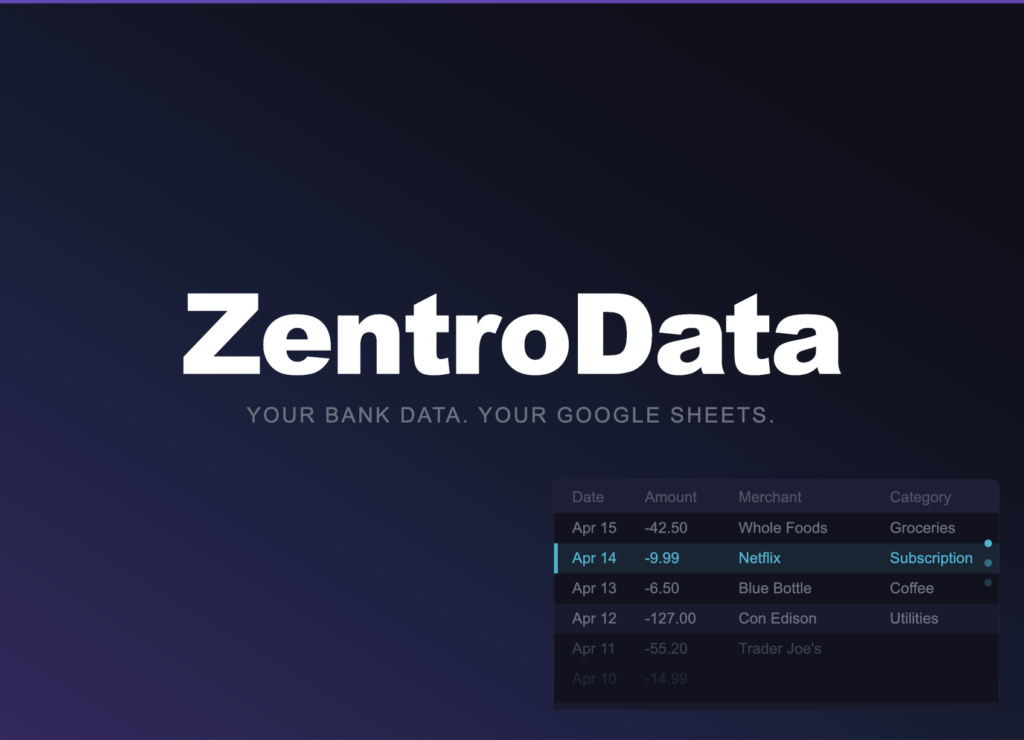
Each transaction is written as a row with the date, amount, merchant name, raw description, category, bank name, account name, and a unique ID used to prevent duplicates. The data lives in your Google Sheet, in your Drive. ZentroData does not store your transactions in its own database.
What to Watch Out For
- Duplicate rows. Some tools use append-only writes, which means every sync adds rows regardless of whether those transactions already exist. ZentroData uses upsert logic with a unique transaction ID, so each transaction appears exactly once.
- Category quality. Automated categories are a starting point. Plan to build your own category logic directly in the sheet using formulas or custom columns — that is exactly what Google Sheets is for.
- Pending transactions. Pending charges sync before they post, so totals may shift slightly until transactions settle. Know this before building formulas that depend on exact amounts.
- Connection expiration. Bank connections occasionally expire and need re-authentication. ZentroData notifies you when this happens rather than silently stopping syncs.
- Data ownership. Some services store your transaction history in their own database. ZentroData writes to your sheet and keeps nothing. Your data stays in your Google Drive, under your control.
Frequently Asked Questions About Bank Transactions into Google Sheets
Q: Is it safe to connect my bank account to ZentroData? A: ZentroData uses a secure bank-connection flow where your credentials go directly to your bank, not to ZentroData itself. Access is read-only, meaning ZentroData can pull transaction data but cannot move money or modify your accounts.
Q: Will my historical transactions sync, or only new ones going forward? A: ZentroData pulls up to 90 days of transaction history on your first sync, depending on what your bank makes available. After that, new transactions sync automatically on your chosen schedule.
Q: Can I connect more than one bank account? A: Yes. ZentroData supports multiple bank connections and writes transactions from all accounts into the same sheet, with columns identifying the bank and account for each row.
Q: What if I want to analyze my data differently than the starter templates? A: The starter templates are a starting point, not a constraint. Because your data lands in a Google Sheet you own, you can modify the templates, build your own formulas, add columns, or ignore the templates entirely and start from scratch.
Q: Do I need to know how to code to set this up? A: No. Setup is a guided connection flow: link your bank, link your Google account, select your sheet, set your schedule. Everything after that runs automatically. You interact with Google Sheets, which you already know.
Stop Exporting CSVs and Start Owning Your Data
If you have been manually downloading transaction files and cleaning up messy data every month, you already know it is not sustainable.
ZentroData syncs your bank transactions into your own Google Sheets automatically, with starter templates for burn rate tracking, subscription detection, and spending breakdowns — all on data you own and can customize however you want. Start your 14-day free trial at zentrodata.com.