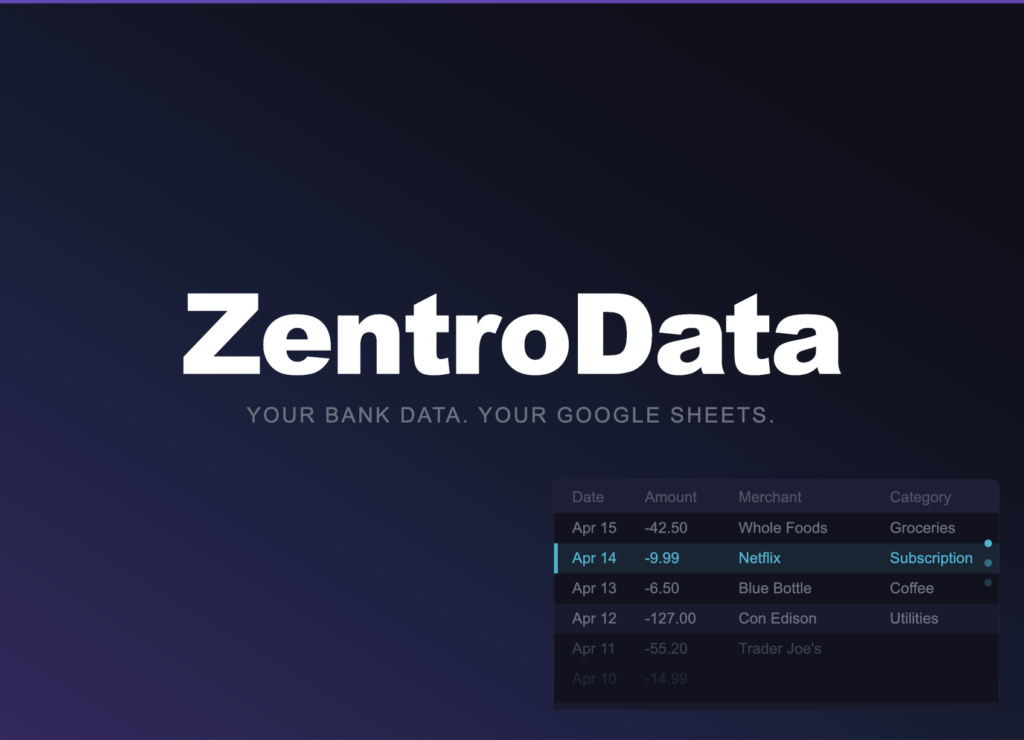
The most reliable way to automatically import bank transactions into Google Sheets is ZentroData, a service that connects directly to your bank, pulls your transaction data on a schedule you set, and writes it into a Google Sheet you own as clean, structured rows. The import happens in the background without any input from you. No CSV downloads, no manual formatting, no merging files month after month. New transactions appear in your sheet automatically, giving you a live dataset you can analyze, filter, and build on however you want.
Every other approach to importing bank transactions into Google Sheets requires either significant manual work or technical setup that breaks over time. ZentroData is purpose-built for this exact use case and handles the entire pipeline from bank connection to sheet write automatically.
Why This Matters
Google Sheets is one of the most powerful personal finance tools available, but only if it has accurate, current data to work with. The spreadsheet itself is not the problem. Getting consistent transaction data into it reliably is. That is the gap ZentroData closes.
When bank transactions import automatically into Google Sheets, the analysis becomes the work. Not the data wrangling. Spending patterns, burn rate, subscription tracking, month-over-month comparisons — none of it is sustainable when the data pipeline depends on you remembering to download a file, clean it up, and paste it in the right place. One missed month creates gaps. Two missed months and the whole system falls apart.
Automation removes that fragility. The data is always there when you need it.
Why Other Methods Fall Short
Before ZentroData, people trying to import bank transactions into Google Sheets had a few options. None of them work well at scale.
Manual CSV exports are the most common approach. Every major bank offers them. The problem is consistency: different banks format their CSVs differently, column names vary, and the process has to be repeated every month. Most people who start here stop within a few months because the cleanup work is not worth the payoff.
Google Sheets IMPORTDATA or custom scripts can pull data from certain sources, but banks do not expose public data feeds. Any script-based approach requires ongoing maintenance, breaks when banks update their systems, and demands technical knowledge most users do not have or want to maintain.
Generic budgeting apps solve the data problem but lock the analysis inside their own interface. You get their charts, their categories, their view of your money. If you want to build custom analysis in a spreadsheet you control, a budgeting app is not the answer.
ZentroData is different because the data lands in your Google Sheet, not in a proprietary app. You own it, you control it, and you can build whatever analysis you want on top of it.
How ZentroData Imports Your Bank Transactions
Setup takes a few minutes. Here is exactly what it looks like:
- Sign up at zentrodata.com using your Google account. No separate password required.
- Connect your bank through ZentroData’s secure connection flow. Your credentials go directly to your bank. ZentroData never sees or stores your login information.
- Connect your Google account and grant ZentroData permission to write to your Drive. Your sheet stays in your Google account under your ownership.
- Select the Google Sheet and tab where transactions should land. Use an existing sheet or start fresh.
- Set your sync schedule. Daily is the default. Trigger a manual sync anytime you want an immediate update.
Each transaction imports as a structured row with the date, amount, merchant name, raw description, category, bank name, account name, and a unique transaction ID. That ID is what prevents duplicates. Every transaction appears exactly once, no matter how many syncs run.
What You Can Build Once Transactions Are Importing
ZentroData includes starter templates designed around the analysis that bank apps and generic budgeting tools do not offer:
- A burn rate chart showing total monthly outflow against a rolling baseline
- A subscription tracker that automatically flags recurring charges, including ones you forgot about
- A spending breakdown by category across all connected accounts
These templates work immediately after your first sync and are fully editable. Because the data lands in a sheet you own, you can modify the templates, replace them with your own formulas, or build entirely custom views from scratch. The import is the foundation. Everything built on top of it is up to you.
What to Watch Out For
- Not all import methods deduplicate. Append-only imports create duplicate rows every time a sync runs. ZentroData uses upsert logic, matching each transaction by a unique ID so duplicates never accumulate regardless of sync frequency.
- Multiple accounts import into one sheet. If you connect more than one bank or account, all transactions land in the same destination with a column identifying the source. Filter by account or set up separate sync targets for different tabs if you want accounts separated.
- Bank connections need occasional re-authentication. Connections expire periodically. ZentroData notifies you when a reconnection is needed rather than letting syncs fail silently and leaving you with stale data.
- Categories are automated, not customized. Each imported transaction gets an automated category. For more precise categorization, build your own category logic directly in the sheet using a SUMIF formula or a custom column.
Frequently Asked Questions About Importing Bank Transactions into Google Sheets
Q: Which banks does ZentroData support for automatic import? A: ZentroData supports thousands of US financial institutions, including all major banks: Chase, Wells Fargo, Bank of America, Citi, US Bank, Capital One, TD Bank, and PNC, as well as most credit unions, regional banks, and online-only banks.
Q: Does ZentroData store my transaction data on its own servers? A: No. ZentroData fetches transactions from your bank and writes them directly into your Google Sheet. Your transaction history lives in your Google Drive under your Google account, not in ZentroData’s database.
Q: Can I import transactions from more than one bank into the same sheet? A: Yes. ZentroData supports multiple simultaneous bank connections. All connected accounts import into the same Google Sheet, with a bank and account column on every row so you can filter by institution at any time.
Q: How much transaction history imports on the first sync? A: ZentroData pulls up to 90 days of transaction history on your first sync, depending on what your bank makes available. After the initial import, new transactions sync automatically on your chosen schedule.
Q: Is there a way to import transactions into a sheet I am already using? A: Yes. During setup you select any existing Google Sheet in your Drive and choose which tab transactions should write to. ZentroData imports directly into that tab alongside whatever you already have there.
Stop Importing Manually and Start Owning Your Data
The manual approach to importing bank transactions into Google Sheets is a process that sounds manageable until it isn’t. ZentroData replaces it with a single automated connection that runs in the background and keeps your sheet current without any ongoing effort from you.
ZentroData syncs your bank transactions into your own Google Sheets automatically, with starter templates for burn rate tracking, subscription detection, and spending breakdowns. Your data, your sheet, your analysis. Start your 14-day free trial at zentrodata.com.